Embed a dashboard using an Embed token
After generating an embed authorization token server-side that provides access to a dashboard and its underlying datasets, you can use that Embed key-token pair to securely embed the dashboard using one of Luzmo's Embed libraries.
Install a Luzmo component
First you should install the appropriate component library in your frontend. We have following components available on NPM package manager:
Install the web component via npm package manager by running the following command in your command line interface. It's recommended to use npm to ensure you can easily get the latest version of Luzmo's component when available!
npm i @luzmo/embedIf your application doesn't use npm or a similar JavaScript package manager, you can import our minified JavaScript file in any HTML file using the following code:
<!--
You can (programmatically) retrieve the latest version via this link:
https://cdn.luzmo.com/js/luzmo-embed/latest-version.json
It is recommended to reference a static version in your application (e.g. "<WEB_COMPONENT_VERSION>"),
and periodically verify and upgrade your application's implementation to
benefit from any improvements in the latest version of the web component.
-->
<script
  defer
  src="https://cdn.luzmo.com/js/luzmo-embed/<WEB_COMPONENT_VERSION>/luzmo-embed.min.js"
  charset="utf-8">
</script>
Embed a dashboard securely
In this step we'll use the generated Embed key-token pair to securely embed a dashboard in your frontend using the installed Luzmo component, by referencing the dashboard with its id.
You can optionally retrieve a list of accessible dashboards to dynamically provide them to your users in e.g. a sidebar in your application's frontend.
Import the component in a Javascript module.
import '@luzmo/embed';You can also import the component in an HTML page.
<script type="module">
  import './node_modules/@luzmo/embed/index.js';
</script>
<!-- OR -->
<script type="module" src="./node_modules/@luzmo/embed/index.js"></script>
Add the Luzmo component to your HTML page.
<!--
Clients on Luzmo's US multi-tenant application environment,
or a dedicated instance on a specific VPC, should specify:
- appServer="https://app.us.luzmo.com/" (or your VPC-specific address)
- apiHost="https://api.us.luzmo.com/" (or your VPC-specific address)
-->
<luzmo-embed-dashboard
  appServer="< Luzmo App server, defaults to https://app.luzmo.com >"
  apiHost="< Luzmo API server, defaults to https://api.luzmo.com >"
  authKey="< embed authorization key >"
  authToken="< embed authorization token >"
  dashboardId="< dashboard id you want to embed >">
</luzmo-embed-dashboard>| Parameter | Description |
|---|---|
|
appServer string |
Tenancy of Luzmo app to connect to. Defaults to 'https://app.luzmo.com/'. For US multi-tenant application, set appServer to 'https://app.us.luzmo.com/'. For dedicated VPC environments, you should point towards your VPC-specific address.
|
|
apiHost string |
Tenancy of Luzmo API to connect to. Defaults to 'https://api.luzmo.com/'. For US multi-tenant application, set apiHost to 'https://api.us.luzmo.com/'. For dedicated VPC environments, you should point towards your VPC-specific address.
|
|
authKey uuid |
The authorization key (i.e. "id") from the response of the authorization request in your backend. |
|
authToken string |
The authorization token from the response of the authorization request in your backend. |
|
dashboardId uuid |
This is the id of the dashboard that you want to embed. |
There are additional properties that can be specified to e.g. choose which language or timezone will be loaded and/or to style the dashboard loader . This to ensure a perfect fit with the style of your page. Check the Embedding chapter for all documentation related to Luzmo's frontend components.
That's it, with these steps you securely embed a dashboard in your application/platform!
Next steps
Below you can find some of the additional options related to embedding Luzmo dashboards into your application!
Retrieving a list of dashboards
When you embed a dashboard with one of our embedding components (all components are listed in the Embedding chapter), you can make use of the getAccessibleDashboards method in your frontend to programmatically retrieve a list of dashboards. The dashboards that are returned are associated with the specific integration that the Embed key and token has access to, or its bootstrapped Suborganization or Embed user. This is particularly useful if you'd like to have a dynamic way of retrieving and providing dashboards in your frontend! Some use-cases are described in this Academy article .
The getAccessibleDashboards method returns a Promise that resolves with an array of AccessibleDashboard elements .
<body>
  <!-- ... -->
  <luzmo-embed-dashboard
    appServer="< Luzmo App server, defaults to https://app.luzmo.com >"
    apiHost="< Luzmo API server, defaults to https://api.luzmo.com >"
  ></luzmo-embed-dashboard>
  <!-- ... -->
  <script>
    // Get the component reference
    // Note: only returns the first occurrence of a Luzmo component within the document.
    const dashboardElement = document.querySelector("luzmo-embed-dashboard");

    // Set the Embed Authorization key and token pair
    dashboardElement.authKey = "< Embed Authorization Key >";
    dashboardElement.authToken = "< Embed Authorization Token >";

    // Retrieve the dashboards that are accessible to the Embed Authorization token
    dashboardElement.getAccessibleDashboards()
        .then(dashboards => {
            // Do something with the response, e.g. dynamically fill your application's navigation
            console.log(dashboards);
        });
  </script>
</body>[
{
"id": "< dashboard_1_id >",
"modifiedAt": "2021-02-10T09:13:27.114Z",
"name": "< dashboard_1_name >",
"tags": [
"< dashboard_1_tag_1 >",
"< dashboard_1_tag_2 >"
],
"accessibleBy": [
{
"model": "User",
"id": "< user_A_id >",
"name": "< user_A_name >"
},
{
"model": "User",
"id": "< user_B_id >",
"name": "< user_B_name >"
},
{
"model": "Group",
"id": "< group_id >",
"name": "< group_name >"
}
],
"accessRights": {
"flagRead": true,
"flagUse": true,
"flagModify": false,
"flagOwn": false
}
},
...
]Set an initialization filter
An initialization filter is a type of filter that initializes a filter object (date filter, dropdown filter, slicer filter and slider filter) to a certain value, in an embedded dashboard. This means that the specified filter will be applied when the dashboard loads, but it can still be turned off or modified afterwards.
To do this, extend your embedding code by adding a "filters" parameter to the authorization request, as seen in the example below.
For an initialization filter on a filter object, it is not needed to specify the "securable_id" or "column_id" properties in the filters parameter. This is because a filter object can contain multiple columns, coming from different datasets.
You can also set initialization filters on chart objects. This pre-selects a portion of the chart when the dashboard opens. The structure in this case is slightly different: next to a "chart_id", you need a "column_id" and a "securable_id" (please see an example request here ).
const Luzmo = require('@luzmo/nodejs-sdk');
const client = new Luzmo({
  api_key: "< Your API key >",
  api_token: "< Your API token >",
  host: "< https://api.luzmo.com (default) or https://api.us.luzmo.com or your VPC-specific address >",
});

const promise = client.create("authorization", {
  type: "embed",
  expiry: "2024-02-13T10:38:08.493Z",
  inactivity_interval: 600,
  username: "< A unique and immutable identifier for your user >",
  name: "< user name >",
  email: "< user email >",
  suborganization: "< a suborganization name >",
  access: {
    dashboards:[
      {
        id: "<a dashboard id>",
        rights: "use"
      }
    ],
    datasets:[
      {
        id: "<a dataset id>",
        rights: "use"
      }
    ],
    collections: [
      {
        id: "<a collection id>",
        inheritRights: "use"
      }
    ]
  },
  filters: [
    {
      clause: "where",
      origin: "initialization",
      chart_id: "< chart id of a filter object contained in the dashboard >",
      expression: "? = ?",
      value: "< value to be applied to the expression >",
    },
  ],
});

promise.then(function (result) {
  // return the result to the client
});| Property | Description | ||||||||||||||||||||||||||||||||
|---|---|---|---|---|---|---|---|---|---|---|---|---|---|---|---|---|---|---|---|---|---|---|---|---|---|---|---|---|---|---|---|---|---|
|
type string required |
Use the value embed for embedding a dashboard. |
||||||||||||||||||||||||||||||||
|
expiry date (RFC 3339) |
RFC3339 timestamp when this authorization will cease working. Defaults to 24 hours from creation default, with a maximum of 1 year. This is the hard (maximum) expiry time of the token, after which it will always be invalid. We advise using short expiry time, eg. 24 hours from now. Upon expiry of the token, the authorizationExpired event will be emitted. |
||||||||||||||||||||||||||||||||
|
inactivity_interval integer |
Duration of inactivity (in seconds) after which the token is prematurely invalidated. Defaults to 0.
You can use this to prematurely invalidate tokens when the user session in your application has ended (eg. all open dashboards are closed).
A value of 0 means no premature invalidation due to inactivity (the token will only expire on the datetime specified in the expiry property of the Authorization request).
For non-zero values the minimum is 120 seconds, this is to avoid accidental invalidation for a dashboard that is still open, eg. when a heartbeat signal sent to the server is missed. Upon expiry of the token, the authorizationExpired event will be emitted. |
||||||||||||||||||||||||||||||||
|
username string required |
Identifies the user uniquely and immutably.
This should correspond to eg. the primary key for the user on your end. If it changes, the user will not have access to their previously created content anymore. Don't use e.g. an e-mail address if those can change in your platform! This will also be used to uniquely identify a Monthly Active Viewer (MAV) for your Organization. |
||||||||||||||||||||||||||||||||
|
name string required |
The full name of the user (i.e. First name and Last name). This will be used in Luzmo's UI. | ||||||||||||||||||||||||||||||||
|
email string required |
The email address of the user. This will be used in Luzmo's UI. | ||||||||||||||||||||||||||||||||
|
suborganization string |
Each embed token should be in a suborganization. The suborganization determines which other users they can see & interact with. it defaults to username to have total isolation, set to null if you want all users to see each other. | ||||||||||||||||||||||||||||||||
| |||||||||||||||||||||||||||||||||
|
filters ARRAY[OBJECT] |
List of dashboard-level, chart-level, and/or initialization filters. The information below applies specifically to setting initialization filters. | ||||||||||||||||||||||||||||||||
|
|||||||||||||||||||||||||||||||||
Set language or timezone
When you have built a multi-lingual dashboard (see this Academy article ), you can specify what language to use when embedding a dashboard in your web page using the
languageproperty.You can override the dashboard timezone that was set in the dashboard editor when embedding a dashboard in your web page (More info on timezone support can be found in this Academy article ). This can be achieved by specifying the
timezoneIdproperty in the web component. The provided timezone ID needs to be a valid ID that is available in the IANA timezone database , for example: Europe/Brussels or America/New_York .
<luzmo-embed-dashboard
  appServer="< Luzmo App server, defaults to https://app.luzmo.com >"
  apiHost="< Luzmo API server, defaults to https://api.luzmo.com >"
  authKey="< Embed authorization key >"
  authToken="< Embed authorization token >"
  dashboardId="< dashboard id you want to embed >"
  language="< Language code, e.g. 'en', 'fr', etc. >"
  timezoneId="< Timezone ID, e.g. 'Europe/Brussels', 'America/New_York', etc. >"
></luzmo-embed-dashboard>
| Property | Description |
|---|---|
|
appServer STRING |
Tenancy of Luzmo app to connect to. Defaults to 'https://app.luzmo.com/'.
For US multi-tenant application, set appServer to 'https://app.us.luzmo.com/'. For dedicated VPC environments, you should point towards your VPC-specific address. |
|
apiHost STRING |
Tenancy of Luzmo API to connect to. Defaults to 'https://app.luzmo.com/'.
For US multi-tenant application, set apiHost to 'https://app.us.luzmo.com/'. For dedicated VPC environments, you should point towards your VPC-specific address. |
|
authKey UUID |
The authorization key (i.e. "id") from the response of the authorization request in your backend. |
|
authToken STRING |
The authorization token from the response of the authorization request in your backend. |
|
dashboardId UUID |
This is the id of the dashboard that you want to embed. |
|
language STRING |
(Optional) The language code that you wish to use in the dashboard instead of the default language of the dashboard. You can specify 'en', 'cs', 'da', 'de', 'es', 'fi', 'fr', 'he', 'hu', 'it', 'ja', 'ko', 'mk', 'nl', 'pl', 'pt', 'ru', 'sv', 'zh_cn' or 'zh_tw'.
If that language code is not configured in the dashboard, the default language of that dashboard will be used.This Academy articlegoes into more detail about multi-lingual dashboards. |
|
timezoneId STRING |
(Optional)The timezone id you wish to use in your dashboard, instead of the default timezone of the dashboard (or Embed token). This timezone id needs to be a valid id that is available in the IANA timezone database, for example: Europe/Brussels or America/New_York. More info on timezone support in an (embedded) Luzmo dashboard can be found in this Academy article. |
For all possible frontend component properties, check the component reference .
Set loader style
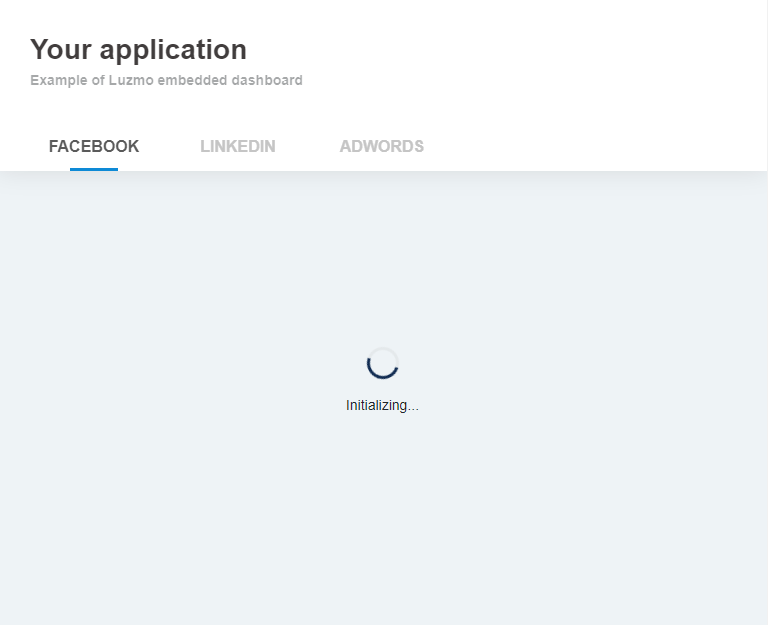
When you load a page that has an embedded dashboard or chart, a few resources will need to be retrieved, and access to the dashboard needs to be verified. During this process, a loading indicator is shown.
<luzmo-embed-dashboard
  appServer="< Luzmo App server, defaults to https://app.luzmo.com >"
  apiHost="< Luzmo API server, defaults to https://api.luzmo.com >"
  authKey="< Embed authorization key >"
  authToken="< Embed authorization token >"
  dashboardId="< dashboard id you want to embed >"
  loaderBackground="rgb(249, 249, 249)"
  loaderFontColor="rgb(0,0,0)"
  loaderSpinnerColor="rgba(255, 165, 0, 0.7)"
  loaderSpinnerBackground="rgba(169, 169, 169, 0.14)"
></luzmo-embed-dashboard>
This loader can be completely customized to match the styling of your website or platform. You can change the color of the background, the color of the font, the color of the spinner itself, and the background of the spinner.
These colors can be specified in rgb or rgba values. For example: for the color red, the rgb value is rgb(255, 0, 0) and the rgba value is rgba(255, 0, 0, 1) .
| Property | Description |
|---|---|
|
appServer STRING |
Tenancy of Luzmo app to connect to. Defaults to 'https://app.luzmo.com/'.
For US multi-tenant application, set appServer to 'https://app.us.luzmo.com/'. For dedicated VPC environments, you should point towards your VPC-specific address. |
|
apiHost STRING |
Tenancy of Luzmo API to connect to. Defaults to 'https://app.luzmo.com/'.
For US multi-tenant application, set apiHost to 'https://app.us.luzmo.com/'. For dedicated VPC environments, you should point towards your VPC-specific address. |
|
authKey UUID |
The authorization key (i.e. "id") from the response of the authorization request in your backend. |
|
authToken STRING |
The authorization token from the response of the authorization request in your backend. |
|
dashboardId UUID |
This is the id of the dashboard that you want to embed. |
|
loaderBackground STRING |
(Optional) The background color of the container while loading the dashboard.
This property should be specified as a string of rgb or rgba values, e.g. "rgb(50,50,50)", "rgba(50,50,50, 0.5)", etc.
|
|
loaderFontColor STRING |
(Optional) The font color of the message(s) while loading the dashboard.
This property should be specified as a string of rgb or rgba values, e.g. "rgb(50,50,50)", "rgba(50,50,50, 0.5)", etc.
|
|
loaderSpinnerColor STRING |
(Optional) The color of the spinner while loading the dashboard.
This property should be specified as a string of rgb or rgba values, e.g. "rgb(50,50,50)", "rgba(50,50,50, 0.5)", etc.
|
|
loaderSpinnerBackground STRING |
(Optional) The background color of the spinner while loading the dashboard.
This property should be specified as a string of rgb or rgba values, e.g. "rgb(50,50,50)", "rgba(50,50,50, 0.5)", etc.
|
Embed a single dashboard item
It is possible to embed only a certain dashboard item instead of a specific dashboard. Next to specifying a dashboardId , you can specify the id of the item within the dashboard in the itemId property of the frontend component. The embedded dashboard item will automatically resize based on the parent container's width and height!
<luzmo-embed-dashboard
  appServer="< Luzmo App server, defaults to https://app.luzmo.com >"
  apiHost="< Luzmo API server, defaults to https://api.luzmo.com >"
  authKey="< Embed authorization key >"
  authToken="< Embed authorization token >"
  dashboardId="< dashboard id you want to embed >"
  itemId="< an id of a Luzmo item within the dashboard >"
></luzmo-embed-dashboard>
| Property | Description |
|---|---|
|
appServer STRING |
Tenancy of Luzmo app to connect to. Defaults to 'https://app.luzmo.com/'.
For US multi-tenant application, set appServer to 'https://app.us.luzmo.com/'. For dedicated VPC environments, you should point towards your VPC-specific address. |
|
apiHost STRING |
Tenancy of Luzmo API to connect to. Defaults to 'https://app.luzmo.com/'.
For US multi-tenant application, set apiHost to 'https://app.us.luzmo.com/'. For dedicated VPC environments, you should point towards your VPC-specific address. |
|
authKey UUID |
The authorization key (i.e. "id") from the response of the authorization request in your backend. |
|
authToken STRING |
The authorization token from the response of the authorization request in your backend. |
|
dashboardId UUID |
This is the id of the dashboard that you want to embed. |
|
itemId UUID |
(Optional) In case you want to embed a single item of a dashboard, you should specify both a dashboardId and itemId to the id of the item that you want to embed.
The embedded dashboard item will automatically resize based on the parent container's width and height. |
For all possible parameters, check the Embed documentation .