Dashboard Component Reference
This component can be used to embed Luzmo dashboards or dashboard items securely into your frontend application, as well as the embedded dashboard editor. Below you can find all properties, events, and methods that are exposed by this frontend component.
Properties
All available properties can be seen in the code snippet below
<luzmo-embed-dashboard
appServer="< Luzmo App server, defaults to https://app.luzmo.com >"
apiHost="< Luzmo API server, defaults to https://api.luzmo.com >"
authKey="< Embed authorization key >"
authToken="< Embed authorization token >"
dashboardId="< dashboard id you want to embed >"
itemId="< id of a Luzmo item within the dashboard >"
itemDimensions="{ "width": <width_in_pixels>, "height": <height_in_pixels> }"
screenMode="< dashboard screenmode >"
language="< dashboard language >"
editorLanguage="< dashboard editor language >"
timezoneId="< dashboard timezone id >"
loaderBackground="< background color of the loader >"
loaderFontColor="< font color of the loader >"
loaderSpinnerColor="< color of the spinner in the loader >"
loaderSpinnerBackground="< Background color of the spinner in the loader >"
editMode="< 'view' (default), 'editLimited' or 'editFull' >"
mainColor="< Main whitelabeling color of embedded dashboard editor >"
embedMode="<'webComponent' (default) or 'iframe'>"
></luzmo-embed-dashboard>Below you can find a list of all available properties that you can (optionally) specify in the frontend component, together with their explanation and possible values:
| Parameter | Description | ||||
|---|---|---|---|---|---|
|
appServer string |
Tenancy of Luzmo app to connect to. Defaults to 'https://app.luzmo.com/'. For US multi-tenant application, set appServer to 'https://app.us.luzmo.com/'. For dedicated VPC environments, you should point towards your VPC-specific address.
|
||||
|
apiHost string |
Tenancy of Luzmo API to connect to. Defaults to 'https://api.luzmo.com/'. For US multi-tenant application, set apiHost to 'https://api.us.luzmo.com/'. For dedicated VPC environments, you should point towards your VPC-specific address.
|
||||
|
authKey uuid |
The authorization key (i.e. "id") from the response of the authorization request in your backend. | ||||
|
authToken string |
The authorization token from the response of the authorization request in your backend. | ||||
|
dashboardId uuid |
The id of the dashboard to embed. | ||||
|
itemId uuid |
(Optional) In case you want to embed a single item of a dashboard, you should specify both the dashboardId and the itemId property set to the id of the item that you want to embed. The embedded dashboard item will automatically resize based on the parent container's width and height. |
||||
|
itemDimensions object |
(optional) The desired dimensions of the single chart that you want to embed. By default it uses the dimensions of the chart in the dashboard. For this parameter it is required to specify an itemId. |
||||
|
|||||
|
screenMode string |
(Optional) By default, the frontend component will automatically switch between the available screen modes of a dashboard based on the available width of the parent container in your application, and resizes the appropriate screen mode to that width (screenMode: 'auto' is the default when not specified).In case you'd like your dashboard to only be embedded in one specific screen mode, you can specify either 'fixed', 'mobile', 'tablet', 'desktop', or 'largeScreen'. If the screenMode is set to a specific screen mode, and that screen mode is available, it will be used. This also means that the dashboard will not auto-resize or switch to other screenmodes if the size of the container changes.More info on screen modes in a Luzmo dashboard can be found in this Academy article. |
||||
|
language string |
(Optional) The language code that you wish to use in the dashboard instead of the default language of the dashboard. You can specify 'en', 'cs', 'da', 'de', 'es', 'fi', 'fr', 'he', 'hu', 'it', 'ja', 'ko', 'mk', 'nl', 'pl', 'pt', 'ru', 'sv', 'zh_cn' or 'zh_tw'.If that language code is not configured in the dashboard, the default language of that dashboard will be used. This Academy article goes into more detail about multi-lingual dashboards. |
||||
|
editorLanguage string |
(Optional) The language code that you wish to use in the dashboard editor instead of the default language of the user/organization. You can specify 'en', 'fr', 'es', 'nl' or 'de'.If that language code is not configured in the dashboard, the default user/organization language will be used. |
||||
|
timezoneId string |
(Optional) The timezone id you wish to use in your dashboard, instead of the default timezone of the dashboard (or Embed token). This timezone id needs to be a valid id that is available in the IANA timezone database, for example: Europe/Brussels or America/New_York. More info on timezone support in an (embedded) Luzmo dashboard can be found in this Academy article. |
||||
|
loaderBackground string |
(optional) The background color of the container while loading the dashboard. This property should be specified as a string of rgb or rgba values, e.g. "rgb(50,50,50)", "rgba(50,50,50, 0.5)", etc.
|
||||
|
loaderFontColor string |
(optional) The font color of the message(s) while loading the dashboard. This property should be specified as a string of rgb or rgba values, e.g. "rgb(50,50,50)", "rgba(50,50,50, 0.5)", etc.
|
||||
|
loaderSpinnerColor string |
(optional) The color of the spinner while loading the dashboard. This property should be specified as a string of rgb or rgba values, e.g. "rgb(50,50,50)", "rgba(50,50,50, 0.5)", etc.
|
||||
|
loaderSpinnerBackground string |
(optional) The background color of the spinner while loading the dashboard. This property should be specified as a string of rgb or rgba values, e.g. "rgb(50,50,50)", "rgba(50,50,50, 0.5)", etc.
|
||||
|
mainColor string |
(Optional) Override the main color used in the whitelabeling of the embedded dashboard editor. If not provided, the main color of the whitelabeling colors set on the organization will be used. Should be specified as a string of rgb values, e.g. "rgb(50,50,50)".A gif showcasing the influence of specifying mainColor can be seen in this Academy article. |
||||
|
editMode string |
In case you would like to embed our dashboard editor, you will need to switch to an edit mode by providing either 'editLimited' or 'editFull' as value for this property (or using [the setEditMode method](#seteditmode) to pass along that value). If not specified, the default mode is "view" (i.e. no editor).
|
||||
|
embedMode string |
(Optional) Determines how an embedded dashboard is rendered: "webComponent" (default) or "iframe". By default, an embedded dashboard in view-mode renders as a web component directly in your page (not inside an iframe). This allows product analytics tracking tools like Pendo, Posthog, Heap, etc. to track pointer events inside the embedded dashboard, ensures better performance when embedding multiple charts or dashboards on a single page (as they can share resources), and provides out-of-the-box cross-chart filtering when embedding individual dashboard widgets from the same dashboard (see itemId property above). If needed, you can still fall back to rendering the embedded dashboard inside an iframe by setting embedMode to "iframe". Please note that when setting the editMode property to a different value than "view" (default value), the Embedded Dashboard Editor will currently always render inside an iframe.
|
||||
Methods
The embed libraries offer some methods you can use to trigger actions on the dashboard, or receive information/data from the dashboard.
We currently provide the following methods:
setAuthorization
The setAuthorization method allows you to replace the Embed authorization token that is currently used to embed a dashboard. This can be useful if the new Embed authorization token has different properties that should be taken into account in the dashboard (e.g. different (initialization) filter values, different theme, etc.).
<body>
  <!-- -->
  <button id="set-authorization-button">Set authorization</button>
  <luzmo-embed-dashboard
    appServer="< Luzmo App server, defaults to https://app.luzmo.com >"
    apiHost="< Luzmo API server, defaults to https://api.luzmo.com >"
    authKey="< Initial Embed Authorization key >"
    authToken="< Initial Embed Authorization token >"
    dashboardId="< Dashboard ID >"
  ></luzmo-embed-dashboard>
  <!-- -->
  <script>
    // Get the button reference
    const setAuthorizationButton = document.getElementById("set-authorization-button");

    // Get the component reference
    // Note: only returns the first occurrence of a Luzmo component within the document.
    const dashboardComponent = document.querySelector("luzmo-embed-dashboard");

    // Add an event listener to the click event on the button
    setAuthorizationButton.onclick = () => {
      // Set the new Embed Authorization token via the setAuthorization method
      dashboardComponent.setAuthorization(
        "< New Embed Authorization key >",
        "< New Embed Authorization token >"
      ).then(() => {
        // Successfully set the new Embed Authorization key and token!
        // Either retrigger the data queries of one/all dashboard items,
        return dashboardComponent.refreshData(
          "< (Optional) id of a specific dashboard item to refresh >"
        );
        // OR, reload the dashboard itself
        // return dashboardComponent.reloadDashboard();
      }).then(() => {
        // Success!
      });
    };
  </script>
</body>
You pass along a new Embed Authorization key and token pair as arguments to the setAuthorization method. Once the promise is resolved, you will always want to call either :
the reloadDashboard method, if e.g. a different theme should be applied, a different initialization filter from the token should be taken into account, etc. This will reload the dashboard itself.
the refreshData method, if the queries of the dashboard item(s) should take the properties of the new Embed authorization token into account. This will trigger one or all dashboard item's queries to be fired again.
The setAuthorization method should not be used to set the initial authorization key-token pair when embedded a dashboard, but only to replace the initially specified key-token pair (as set on the authKey and authKey properties of the Luzmo frontend component).
| Parameter | Description |
|---|---|
|
authKey string |
The new Embed Authorization key (the 'id' property in the response of the Embed Authorization request).
|
|
authToken string |
The new Embed authorization token. |
reloadDashboard
The reloadDashboard method is used to reload an embedded dashboard without reloading the whole embedded frame . This is useful when e.g. the authorization has changed (by using setAuthorization ) and the dashboard itself needs to be updated.
The reloadDashboard method returns a Promise that "resolves" with no value .
<body>
  <!-- ... -->
  <button id="reload-dashboard-button">Reload dashboard</button>
  <luzmo-embed-dashboard
    appServer="< Luzmo App server, defaults to https://app.luzmo.com >"
    apiHost="< Luzmo API server, defaults to https://api.luzmo.com >"
    authKey="< Embed Authorization key >"
    authToken="< Embed Authorization token >"
    dashboardId="< Dashboard ID >"
  ></luzmo-embed-dashboard>
  <!-- ... -->
  <script>
    // Get the button reference
    const reloadDashboardButton = document.getElementById("reload-dashboard-button");

    // Get the component reference
    // Note: only returns the first occurrence of a Luzmo component within the document.
    const dashboardComponent = document.querySelector("luzmo-embed-dashboard");

    // Add an event listener to the click event on the button
    reloadDashboardButton.onclick = () => {
      // Reload the dashboard using the reloadDashboard method
      dashboardComponent.reloadDashboard()
        .then(() => {
          // Successfully reloaded the embedded dashboard!
        });
    };
  </script>
</body>
refreshData
The refreshData method is used to retrigger one or all queries of widgets inside an embedded dashboard, without reloading the dashboard itself . This is useful when e.g. the authorization has changed (by using setAuthorization ) the widgets should use the new authorization token to query different data (e.g. filtered by a component from your application).
The refreshData method returns a Promise that "resolves" with no value .
<body>
  <!-- ... -->
  <button id="refresh-data-button">Refresh data</button>
  <luzmo-embed-dashboard
    appServer="< Luzmo App server, defaults to https://app.luzmo.com >"
    apiHost="< Luzmo API server, defaults to https://api.luzmo.com >"
    authKey="< Embed Authorization key >"
    authToken="< Embed Authorization token >"
    dashboardId="< Dashboard ID >"
  ></luzmo-embed-dashboard>
  <!-- ... -->
  <script>
    // Get the button reference
    const refreshDataButton = document.getElementById("refresh-data-button");

    // Get the component reference
    // Note: only returns the first occurrence of a Luzmo component within the document.
    const dashboardComponent = document.querySelector("luzmo-embed-dashboard");

    // Add an event listener to the click event on the button
    refreshDataButton.onclick = () => {
      // Refresh the data of all items using the refreshData method
      dashboardComponent.refreshData().then(() => {
        // Successfully refreshed the data of all items in the embedded dashboard!
      });

      // Alternatively, you could also refresh the data of a specific dashboard item
      // dashboardComponent.refreshData(
      //   "< (Optional) id of a specific dashboard item to refresh >"
      // ).then(() => {
        // Successfully refreshed the data of a specific dashboard item!
      // });
    };
  </script>
</body>
The refreshData method is used to refresh the data of all items in an embedded dashboard. If the itemId argument is specified, only this specific dashboard item's data will be refreshed (see here where to find a dashboard items UUID).
| Parameter | Description |
|---|---|
|
itemId uuid |
(Optional) The id of the dashboard item for which the data needs to be refreshed Here we explain how to find the UUID of a dashboard item in our dashboard editor. |
getFilters
The getFilters method is used to get all active filters in an embedded dashboard . It can be useful when using bi-directional communication with an embedded dashboard, e.g. if you'd like to enable your users to save the currently applied filters of an embedded dashboard (a step-by-step guide for this setup can be found in this Academy article ).
If your application should be aware of each filter change within an embedded dashboard (e.g. a user selects "value 1" and "value 2" in a dashboard item): it might be interesting to set up an event listener to the changedFilters event instead of using the getFilters method.
Usage
Once the getFilters promise is resolved, an array of filter groups will be returned as value
<body>
  <!-- ... -->
  <button id="get-filters-button">Get active filters</button>
  <luzmo-embed-dashboard
    appServer="< Luzmo App server, defaults to https://app.luzmo.com >"
    apiHost="< Luzmo API server, defaults to https://api.luzmo.com >"
    authKey="< Embed Authorization key >"
    authToken="< Embed Authorization token >"
    dashboardId="< Dashboard ID >"
  ></luzmo-embed-dashboard>
  <!-- ... -->
  <script>
    // Get the button reference
    const getFiltersButton = document.getElementById("get-filters-button");

    // Get the component reference
    // Note: only returns the first occurrence of a Luzmo component within the document.
    const dashboardComponent = document.querySelector("luzmo-embed-dashboard");

    // Add an event listener to the click event on the button
    getFiltersButton.onclick = () => {
      // Get all active filters using the getFilters method
      dashboardComponent.getFilters().then((activeFilters) => {
        // Do something with the active filters of the embedded dashboard
      });
    };
  </script>
</body>
The getFilters method does not have any arguments to specify.
Response
[
  {
    "id": "<auto_generated_filter_group_id>",
    "origin": "< 'filterFromVizItem', 'filterFromFilterItem', 'itemFilter', or 'global' >",
    "condition": "< 'and', or 'or' >",
    "filters": [
      {
        "expression": "< filter expression >",
        "parameters": [
          {
            "datasetId": "< dataset id >",
            "columnId": "< dataset column id >"
          },
          < filter value(s) >
        ],
        "properties": {
          "id": "<auto_generated_filter_id>",
          "origin": "< 'filterFromVizItem', 'filterFromFilterItem', 'itemFilter', or 'global' >",
          "type": "< 'having', or 'where' >",
          "itemId": "< dashboard item id (not available for filters with origin 'global')>"
        }
      }
    ],
    "subGroups": [
      // Filter groups within filter group
    ],
    "itemId": "< dashboard item id (not available for filter groups with origin 'global') >",
    "datasetId": "< dataset id (only available for filter groups with origin 'global') >"
  },
  ... // Other filter groups
]
The getFilters method returns a Promise that resolves with an array value containing the active filters as objects .
| Property | Description |
|---|---|
|
id uuid |
(Auto-generated) The UUID of the filter group. |
|
origin string |
The resource type from where the filter group originates from, either:
|
|
condition string |
The filter condition between the different filters in this group, either and or or.
|
|
filters array[object] |
A list of the different filters in the filter group. |
|
expression string |
The filter expression of the filter that is applied. See this Academy article for a list of supported filter expressions per column type). |
|
parameters array |
The parameters of the filter.
|
|
properties object |
The properties related to the filter. |
|
id uuid |
(Auto-generated) The UUID of the filter. |
|
origin string |
The resource type from where the filter itself originates from, either:
|
|
type string |
The filter type of the filter. Depending on the filter origin and expression, this would be either having or where.
|
|
itemId uuid |
The id of the dashboard item where this filter originates from. Note: this is not available for filters with origin global. These filters do not originate from a specific dashboard item, and are instead applied on a dataset level (i.e. all dashboard items querying that dataset will be filtered by this filter).
|
|
subGroups array[object] |
A list of the filter subgroups within this filter group. Each of these objects is a filter group itself. |
|
itemId uuid |
The id of the dashboard item where this filter group has been set up. Note: this is not available for filter groups with origin global (instead of an itemId, filter groups with origin global would contain a datasetId see property below). Such filter groups were not set up on a specific dashboard item, but on a dataset level in the dashboard editor (i.e. all dashboard items querying that dataset will be filtered by this filter group).
|
|
datasetId uuid |
The id of the dataset where this filter group has been set up. Note: this is only available for filter groups with origin global.
|
getData
The getData method is used to get the data of the specific dashboard item as it is visualized in an embedded dashboard (i.e. taking into account all active filters applied on this dashboard item).
Usage
<body>
  <!-- ... -->
  <button id="get-data-button">Get dashboard item data</button>
  <luzmo-embed-dashboard
    appServer="< Luzmo App server, defaults to https://app.luzmo.com >"
    apiHost="< Luzmo API server, defaults to https://api.luzmo.com >"
    authKey="< Embed Authorization key >"
    authToken="< Embed Authorization token >"
    dashboardId="< Dashboard ID >"
  ></luzmo-embed-dashboard>
  <!-- ... -->
  <script>
    // Get the button reference
    const getDataButton = document.getElementById("get-data-button");

    // Get the component reference
    // Note: only returns the first occurrence of a Luzmo component within the document.
    const dashboardComponent = document.querySelector("luzmo-embed-dashboard");

    // Add an event listener to the click event on the button
    getDataButton.onclick = () => {
      // Get the data of a specific dashboard item
      dashboardComponent.getData(
        "< id of a specific dashboard item to retrieve the data from >"
      ).then((data) => {
        // Do something with the data of the dashboard item
      });
    };
  </script>
</body>| Parameter | Description |
|---|---|
|
itemId uuid required |
The id of the dashboard item for which you'd like to retrieve the data shown. Here we explain how to find the UUID of a dashboard item in our dashboard editor. |
Response
Below you can see an example of the response of getData on a line chart that visualizes the total clicks per year (for 2022 and 2023) per transaction type (Online and Offline).
[
  [
    "2022-01-01T00:00:00.000Z",
    {
      "id": "Online",
      "name": {
        "nl": "Online",
        "fr": "En ligne",
        "en": "Online"
      },
      "color": "rgb(0,255,0)"
    },
    2010843
  ],
  [
    "2022-01-01T00:00:00.000Z",
    {
      "id": "Offline",
      "name": {
        "nl": "Offline",
        "fr": "Hors ligne",
        "en": "Offline"
      },
      "color": "rgb(255,0,0)"
    },
    1912666
  ],
  [
    "2023-01-01T00:00:00.000Z",
    {
      "id": "Online",
      "name": {
        "nl": "Online",
        "fr": "En ligne",
        "en": "Online"
      },
      "color": "rgb(0,255,0)"
    },
    5323286
  ],
  [
    "2023-01-01T00:00:00.000Z",
    {
      "id": "Offline",
      "name": {
        "nl": "Offline",
        "fr": "Hors ligne",
        "en": "Offline"
      },
      "color": "rgb(255,0,0)"
    },
    5093799
  ]
]
The getData method returns a Promise that resolves with an array of arrays value , where each inner array contains the values of a specific data point in the dashboard item.
The actual data returned will depend on the specific dashboard item and slot configuration.
exportDashboard
The exportDashboard method is used to download a snapshot of the embedded dashboard in either PNG or PDF format.
Usage
<body>
  <!-- ... -->
  <button id="export-dashboard-button">Export dashboard</button>
  <luzmo-embed-dashboard
    appServer="< Luzmo App server, defaults to https://app.luzmo.com >"
    apiHost="< Luzmo API server, defaults to https://api.luzmo.com >"
    authKey="< Embed Authorization key >"
    authToken="< Embed Authorization token >"
    dashboardId="< Dashboard ID >"
  ></luzmo-embed-dashboard>
  <!-- ... -->
  <script>
    // Get the button reference
    const exportDashboardButton = document.getElementById("export-dashboard-button");

    // Get the component reference
    // Note: only returns the first occurrence of a Luzmo component within the document.
    const dashboardComponent = document.querySelector("luzmo-embed-dashboard");

    // Add an event listener to the click event on the button
    exportDashboardButton.onclick = () => {
      // Call the exportDashboard method (specifying the desired export type as argument)
      dashboardComponent.exportDashboard(
        "< export type, either 'pdf' or 'png' >"
      ).then((exportMetadataObject) => {
        // Started downloading export!
        // The exportMetadataObject will contain some metadata about the export itself
      });
    };
  </script>
</body>| Parameter | Description |
|---|---|
|
format string |
(Optional) File format of the exported dashboard. Can be either png or pdf. If not specified, the format defaults to png.We recommend to specify pdf for the highest export quality, as most of our dashboard items will be rendered as SVGs without any quality loss!
|
Response
{
  "name": "<autogenerated_dashboard_embed_element_name>",
  "language": "< dashboard language identifier, e.g. 'en', 'fr', etc. >",
  "requestId": "<autogenerated_export_request_id>",
  "type": "export",
  "dashboardId": "< dashboard ID >",
  "screenMode": "< screen mode of the export >"
}
The exportDashboard method returns a Promise , once resolved it will download the export file as 'export.pdf' or 'export.png'.
It will also resolve an object value containing some metadata about the export: the dashboard language ( language ), the dashboard screen mode ( screenMode ), and the dashboard ID ( dashboardId ).
sendExportEmail
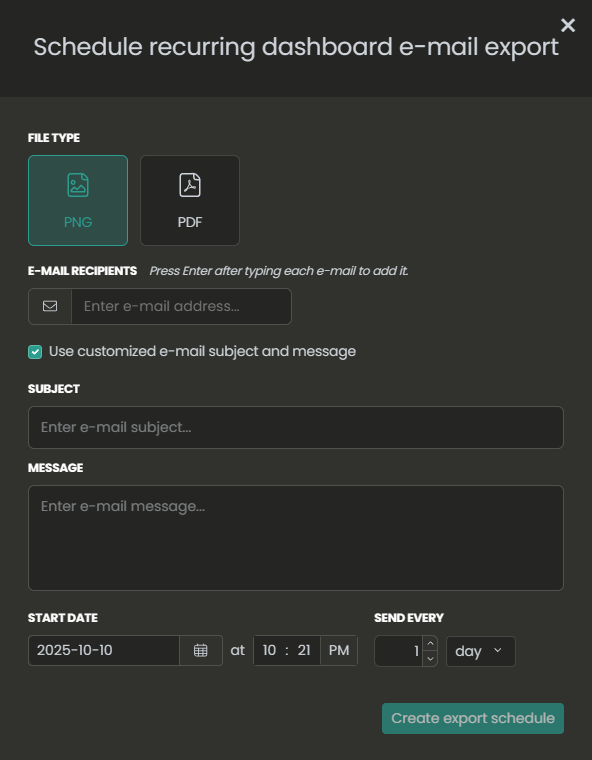
The sendExportEmail method opens a modal that allows users to:
immediately send an export of the current dashboard by email (when
typeis'once')schedule a dashboard export to recur on a regular basis (when
typeis'scheduled')
In the modal, users can choose between a PNG or PDF export, specify email recipients, and choose a start date and frequency for the recurring export schedule.
Users with whitelabeling access can customize the default email subject and body text.
Pass optional subject and message parameters to programmatically set the email content and lock these fields from user modification.
Usage
<body>
  <!-- ... -->
  <button id="email-export-once">Email export now</button>
  <button id="email-export-scheduled">Schedule recurring export email</button>
  <luzmo-embed-dashboard
    appServer="< Luzmo App server, defaults to https://app.luzmo.com >"
    apiHost="< Luzmo API server, defaults to https://api.luzmo.com >"
    authKey="< Embed Authorization key >"
    authToken="< Embed Authorization token >"
    dashboardId="< Dashboard ID >"
  ></luzmo-embed-dashboard>
  <!-- ... -->
  <script>
    // Get button references
    const onceButton = document.getElementById("email-export-once");
    const scheduledButton = document.getElementById("email-export-scheduled");

    // Get the component reference
    const dashboardComponent = document.querySelector("luzmo-embed-dashboard");

    onceButton.onclick = () => {
      // Use the default subject and message for a one-time export
      dashboardComponent.sendExportEmail("once");
    };

    scheduledButton.onclick = () => {
      // Provide custom translated subject and message for a scheduled export
      dashboardComponent.sendExportEmail(
        "scheduled",
        { en: "Weekly KPI dashboard", fr: "Tableau de bord KPI hebdomadaire" },
        { en: "Automated KPI export created by our app.", fr: "Export KPI automatise cree par notre application." }
      );
    };
  </script>
</body>| Parameter | Description |
|---|---|
|
type string |
Export type. Use once for an immediate export email or scheduled for recurring export email setup.
|
|
subject Record<string, string> |
(Optional) Custom email subject (localized). Provide key-value pairs where the key is the language code (e.g. en, fr) and the value is the preferred email subject line. Note: only applies if you have access to the whitelabeling feature.
|
|
message Record<string, string> |
(Optional) Custom email body (localized). Provide key-value pairs where the key is the language code (e.g. en, fr) and the value is the preferred email body. Note: only applies if you have access to the whitelabeling feature.
|
The sendExportEmail method returns void . The modal handles the email sending process after user confirmation.
getAccessibleDashboards
You can make use of the getAccessibleDashboards method in your frontend to dynamically retrieve a list of dashboards . The dashboards that are returned are associated with the specific Collection that the Embed key and token has access to, the Suborganization the Embed user is part of, and the bootstrapped Embed user itself.
This is particularly useful if you'd like to have a dynamic way of retrieving and providing dashboards in your frontend! Some use-cases are described in this Academy article .
Usage
<body>
  <!-- ... -->
  <luzmo-embed-dashboard
    appServer="< Luzmo App server, defaults to https://app.luzmo.com >"
    apiHost="< Luzmo API server, defaults to https://api.luzmo.com >"
  ></luzmo-embed-dashboard>
  <!-- ... -->
  <script>
    // Get the component reference
    // Note: only returns the first occurrence of a Luzmo component within the document.
    const dashboardElement = document.querySelector("luzmo-embed-dashboard");

    // Set the Embed Authorization key and token pair
    dashboardElement.authKey = "< Embed Authorization Key >";
    dashboardElement.authToken = "< Embed Authorization Token >";

    // Retrieve the dashboards that are accessible to the Embed Authorization token
    dashboardElement.getAccessibleDashboards()
        .then(dashboards => {
            // Do something with the response, e.g. dynamically fill your application's navigation
            console.log(dashboards);
        });
  </script>
</body>
The getAccessibleDashboards method does not have any arguments to specify.
Response
[
    {
        "id": "< dashboard_1_id >",
        "modifiedAt": "2021-02-10T09:13:27.114Z",
        "name": "< dashboard_1_name >",
        "slug": null,
        "tags": [
            "< dashboard_1_tag_1 >",
            "< dashboard_1_tag_2 >"
        ],
        "accessibleBy": [
            {
                "model": "User",
                "id": "< user_A_id >",
                "name": "< user_A_name >"
            },
            {
                "model": "User",
                "id": "< user_B_id >",
                "name": "< user_B_name >"
            },
            {
                "model": "Group",
                "id": "< group_id >",
                "name": "< group_name >"
            },
            {
                "model": "Integration",
                "id": "< integration_id >",
                "name": "< integration_name >"
            }
        ],
        "accessRights": {
            "flagRead": true,
            "flagUse": true,
            "flagModify": false,
            "flagOwn": false
        }
    },
    ...
]
The getAccessibleDashboards method returns a Promise that resolves with an array value containing the accessible dashboards .
| Property | Description |
|---|---|
|
id UUID |
The ID of the dashboard. |
|
modifiedAt datetime |
RFC3339 datetime value on which the dashboard was last modified. |
|
name string |
The name of the dashboard. |
|
slug string |
The slug of the dashboard (as set up in the Integration). |
|
tags array[string] |
The list of tags associated to the dashboard. More information about tags can be found in this Academy article |
|
accessibleBy array[object] |
The list of resources through which this dashboard is accessible. Each object in this list will contain a model property that mentions the resources' model name, an id property that references the specific resource's UUID, and a name property that references the specific resource's name!*More information about the different access granularity can be found in [this Academy article](https://academy.luzmo.com/article/j6yyma5h).* |
|
accessRights object |
The highest access right the Embed Authorization token has on the dashboard, based on all access rights given to one or multiple of the 'accessibleBy' resources. More information about the different access rights on a dashboard can be found in here. |
setEditMode
You can use the setEditMode method to programmatically switch an embedded dashboard to the desired view or edit mode . This might be interesting in case your application's navigation allows a user to switch from one embedded dashboard to another, and the dashboard's edit mode should not be persisted when loading another dashboard with the same component.
Alternatively, changing the editMode property of the frontend component will result in a persisted edit mode when specifying another dashboardId property.
...
  <button id="set-edit-mode-button">Set edit mode</button>
  <luzmo-embed-dashboard
    appServer="< Luzmo App server, defaults to https://app.luzmo.com >"
    apiHost="< Luzmo API server, defaults to https://api.luzmo.com >"
    authKey="< Embed Authorization key >"
    authToken="< Embed Authorization token >"
    dashboardId="< Dashboard ID >"
  ></luzmo-embed-dashboard>
...
<script>
  // Get the button reference
  const setEditModeButton = document.getElementById("set-edit-mode-button");

  // Get the component reference
  // Note: only returns the first occurrence of a Luzmo component within the document.
  const dashboardComponent = document.querySelector("luzmo-embed-dashboard");

  // Add an event listener to the click event on the button
  setEditModeButton.onclick = () => {
    // Set the edit mode of the currently embedded dashboard
    dashboardComponent.setEditMode(
      "< edit mode, either 'view', 'editLimited' or 'editFull' >"
    ).then(() => {
      // Successfully switched to the edit mode specified!
    }).catch((error) => {
      // Switching to the edit mode failed
      console.log("Error: ", error.msg);
    });
  };
</script>| Parameter | Description |
|---|---|
|
editMode string required |
The desired edit mode the dashboard should switch to.
Accepted values for this parameter:
|
The setEditMode method returns a Promise that "resolves" with no value if the dashboard's edit mode switched successfully , or with an error if it failed to switch** to the specified edit mode.
Failing to switch can happen in the following cases:
insufficient dashboard access rights to edit the dashboard (see here for more info about the different dashboard access rights));
not using an Embed Authorization key and token with role
designerorowner(see here );trying to switch to an edit mode that is already active.
Events
The embed libraries emit events when certain actions in an embedded dashboard take place. Below you can find more information about how to set up an event listener to these events, as well as details on each of the available events you can optionally listen to!
We currently expose the following events:
Listening to events
In the code example you can see how you can set up an event listener to listen to one or more of the desired events!
<body>
  <!-- -->
  <button id="set-authorization-button">Set authorization</button>
  <luzmo-embed-dashboard
    appServer="< Luzmo App server, defaults to https://app.luzmo.com >"
    apiHost="< Luzmo API server, defaults to https://api.luzmo.com >"
    authKey="< Initial Embed Authorization key >"
    authToken="< Initial Embed Authorization token >"
    dashboardId="< Dashboard ID >"
  ></luzmo-embed-dashboard>
  <!-- -->
  <script>
    // Get the component reference
    // Note: only returns the first occurrence of a Luzmo component within the document.
    const dashboardComponent = document.querySelector("luzmo-embed-dashboard");

    // Add an event listener to the load event
    dashboardComponent.addEventListener("load", (event) => {
      // Do something after the dashboard has loaded
    });

    // Add an event listener to the changedFilters event
    dashboardComponent.addEventListener("changedFilters", (event) => {
      // Do something if an interactivity filter in the dashboard has changed
    });

    // Add an event listener to the itemsRendered event
    dashboardComponent.addEventListener("itemsRendered", (event) => {
      // Do something after all dashboard items have rendered
    });

    // Add an event listener to the exported event
    dashboardComponent.addEventListener("exported", (event) => {
      // Do something after a dashboard (item) has been exported
    });

    // Add an event listener to the customEvent event
    dashboardComponent.addEventListener("customEvent", (event) => {
      // Do something if a custom event is thrown from a dashboard item
    });
  </script>
</body>
Event: load
The following payload will be included every time the 'load' event is emitted
{
  "data": {
    "name": "luzmo-dashboard-H1682506540137",
    "language": "< dashboard language >",
    "type": "load",
    "dashboardId": "< dashboard ID >",
    "screenMode": "< dashboard screen mode >"
  }
}
This event is emitted when a dashboard has loaded (i.e. the dashboard's resources have been retrieved, but the dashboard items still need to query data).
The emitted load event contains the following meaningful payload in the data property:
| Property | Description |
|---|---|
|
language string |
The language in which the dashboard has loaded. This Academy article goes into more detail about multi-lingual dashboards. |
|
type string |
The type of the event, in this case load.
|
|
dashboardId UUID |
The ID of the dashboard that has loaded. |
|
screenMode string |
The screen mode in which the dashboard is currently loaded: either mobile tablet desktop largeScreen or fixed
|
Event: changedFilters
{
  "data": {
    "name": "luzmo-dashboard-H1682506540137",
    "language": "< dashboard language >",
    "origin": "< origin of filter change >",
    "changed": [{...}, ...],
    "filters": [{...}, ...],
    "type": "changedFilters",
    "dashboardId": "< dashboard ID >",
    "screenMode": "< dashboard screen mode >",
    "itemId": "< dashboard item ID that triggered the filter change >"
  }
}
This event is emitted each time an interactivity filter in a dashboard has changed (e.g. a user selects "value 1" and "value 2" in a dashboard item). If the filter state of an embedded dashboard should be known by your application, you should set up an event listener to the changedFilters event.
You can also programmatically retrieve the filter state of an embedded dashboard using the getFilters() method.
The emitted changedFilters event contains the following meaningful payload in the data property:
| Property | Description |
|---|---|
|
language string |
The language in which the dashboard has loaded. This Academy article goes into more detail about multi-lingual dashboards. |
|
origin string |
The resource type from where the filter change originates from, either:
|
|
changed array[object] |
The list of filter groups that changed and caused this event to be emitted. More information about the different properties of the filter groups can be found in the response of the getFilters() method. |
|
filters array[object] |
The list of all active filter groups that are applied in this dashboard. More information about the different properties of the filter groups can be found in the response of the getFilters() method. |
|
itemId uuid |
The ID of the dashboard item that caused this event to be emitted. |
|
type string |
The type of the event, in this case changedFilters
|
|
dashboardId UUID |
The ID of the dashboard where this event has been triggered from. |
|
screenMode string |
The screen mode in which the dashboard is currently shown: either mobile, tablet, desktop, largeScreen, or fixed.
|
Event: itemsRendered
{
  "data": {
    "name": "luzmo-dashboard-H1682506540137",
    "language": "< dashboard language >",
    "type": "itemsRendered",
    "dashboardId": "< dashboard ID >",
    "screenMode": "< dashboard screen mode >"
  }
}
This event is emitted when all items in a dashboard have rendered (i.e. the data has been queried and visualized). It could be used to e.g. show a custom loader until the event is triggered, gather statistics on load times, etc.
The emitted itemsRendered event contains the following meaningful payload in the data property:
| Property | Description |
|---|---|
|
language string |
The language in which the dashboard has loaded. This Academy article goes into more detail about multi-lingual dashboards. |
|
type string |
The type of the event, in this case itemsRendered.
|
|
dashboardId UUID |
The ID of the dashboard where the dashboard items have been rendered. |
|
screenMode string |
The screen mode in which the dashboard is currently shown: either mobile, tablet, desktop, largeScreen, or fixed.
|
Event: exported
{
  "data": {
    "name": "luzmo-dashboard-H1682506540137",
    "language": "< dashboard language >",
    "type": "export",
    "dashboardId": "< dashboard ID >",
    "itemId": "< dashboard item ID (only in case of an item export) >",
    "screenMode": "< dashboard screen mode >",
    "exportType": "< dashboard (item) export type >"
  }
}
This event is emitted when a dashboard (item) has been exported , either via:
The export button of the dashboard (can be toggled in the dashboard settings in the editor)
The export button of a dashboard item (can be toggled in the item settings -> Interactivity)
The exportDashboard method (e.g. your application's custom export element that interacts with the embedded dashboard)
The emitted exported event contains the following meaningful payload in the data property:
| Property | Description |
|---|---|
|
language string |
The language in which the dashboard has loaded. This Academy article goes into more detail about multi-lingual dashboards. |
|
type string |
The type of the event, in this case export.
|
|
dashboardId UUID |
The ID of the dashboard that has been exported. |
|
itemId UUID |
(Only for dashboard item exports) The ID of the dashboard item that has been exported. |
|
screenMode string |
The screen mode in which the dashboard is currently loaded: either mobile, tablet, desktop, largeScreen, or fixed.
|
|
exportType string |
The export type in which the dashboard (item) is exported: either pdf, png, csv, csv-raw, xlsx, or xlsx-raw.
|
Event: dashboardAction
dashboardAction event is emitted
{
  "data":   {
    "name": "luzmo-dashboard-H1682506540137",
    "language": "< dashboard language >",
    "action": "< action type >",
    "type": "dashboardAction",
    "dashboardId": "< dashboard ID >",
    "screenMode": "< dashboard screen mode>"
  }
}
This event is emitted when some actions are taken on an embedded dashboard editor or when the user's authorization expires.
The emitted dashboardAction event contains the following meaningful payload in the data property:
| Property | Description |
|---|---|
|
language string |
The language in which the dashboard has loaded. This Academy article goes into more detail about multi-lingual dashboards. |
|
action string |
The type of action that has occurred:
addColumnToSlot: a dataset column is added to a chart's slot
addFormulaToSlot: a formula is added to a chart's slot
addItem: an item (chart or filter) is added to the dashboard
cloneItem: an item is cloned
closePreview: the dashboard preview is closed
dashboardSaved: the dashboard is saved
measureDimensionPickerUpdate: the configuration of the M/D picker is modified
preview: the dashboard preview is opened
removeColumnFromSlot: a formula or column is removed from a chart's slot
removeItem: an item is removed from the dashboard
rightClickOnColumnListItemInDataMenu: right-click on a column with the data menu
rightClickOnDatasetListItemInDataMenu: right-click on a dataset with the data menu
rightClickOnFormulaListItemInDataMenu: right-click on a formula with the data menu
updateDashboardTitle: the dashboard's title is modified
authorizationExpired: the user's embed authorization has expired
|
|
type string |
The type of the event, in this case dashboardAction.
|
|
dashboardId string |
The ID of the dashboard in which the action is taken. |
|
screenMode string |
The active screenMode when the action is taken. |
|
item object |
Information on the item affected by the action. For example, the chart's ID.
This field is only present in the events for the addColumnToSlot, addFormulaToSlot, addItem, cloneItem, measureDimensionPickerUpdate, removeItem, removeColumnFromSlot actions.
|
|
dropType string |
Type of action taken on slot: add or replace.
This field is only present in the events for the addColumnToSlot and addFormulaToSlot actions.
|
|
column object |
Information on column used in action
This field is only present in the events for the addColumnToSlot, removeColumnFromSlot, rightClickOnColumnListItemInDataMenu actions.
|
|
formula object |
Information on formula used in action
This field is only present in the events for the addFormulaToSlot, rightClickOnFormulaListItemInDataMenu actions.
|
|
measureDimensionPickerState list |
Information on new configuration for Measure/Dimension picker
This field is only present in the events for the measureDimensionPickerUpdate action.
|
|
originalEvent object |
Information on right-click
This field is only present in the events for the rightClickOnColumnListItemInDataMenu, rightClickOnDatasetListItemInDataMenu, rightClickOnFormulaListItemInDataMenu actions.
|
|
dataset object |
Information on dataset
This field is only present in the events for the rightClickOnDatasetListItemInDataMenu action.
|
|
updatedTitle object |
Title object including all languages configured
This field is only present in the events for the updateDashboardTitle action.
|
Event: authorizationExpired
Rather than being initiated by the user, the authorizationExpired dashboardAction event is emitted when a user's authorization becomes invalid.
When encountered, you can generate a new Embed token and use the setAuthorization method to ensure your embedding continues functioning as expected.
The user's authorization can become invalid either because
its
expirytime has been reachedor there has not been activity for longer than the specified
inactivity_interval.
For security reasons we advise using short expiry time values, eg. 24 hours from now and setting an inactivity_interval so the token becomes invalid shortly after the user closed all open dashboards.
For more information on the expiry and inactivity_interval properties, refer to how to generate an Embed token .
authorizationExpired event is emitted
{
  "name": "luzmo-dashboard-<dashboard ID>",
  "language": null,
  "action": "authorizationExpired",
  "type": "dashboardAction",
  "dashboardId": null,
  "screenMode": null
}
Event: customEvent
Custom Events allow you to perform actions in your platform based on what a user has clicked in a dashboard item . This means you can re-use the item's selected data point in your platform , or even include additional data that is not shown in the dashboard item itself. You could for instance open a new dashboard with extra information, filtered to the data point a user has clicked.
In the example shown above, the first custom event is used to open a modal in the parent application. Depending on the specific bar a user has clicked on, a the model will show more in-depth insights in another dashboard filtered to the Category value of the bar ( this Academy article explains step-by-step how to set up your own drillthrough interactivity between dashboards) . Another custom event is used to redirect the user to another part of the parent application, where they can alter the campaign where the custom event originated from!
To set this up, you'll want to:
Create one or more custom events in your dashboard item(s) (see below).
Set up an event listener to listen to events of type
customEvent.Implement your desired interactivity and actionability , based on the emitted event payload of the embedded Luzmo dashboard!
The data emitted with a specific custom event takes into account any filters active on the given dashboard item , which means these filters will directly affect what is emitted by the Custom Event.
Custom events are (currently) not supported in the following dashboard items:
Filter items (e.g. Date filter, Slicer filter, etc.)
Hexbin map
Heat map
Route map
Parallel coordinates
Strip plot
Radar chart
If you have any use-cases in mind where custom events on one of the dashboard items above would be useful, Don't hesitate to pass describe your use-case using the "Submit an idea" button on (our public Roadmap page)[ https://www.luzmo.com/roadmap ]!
Enabling in a dashboard item
To set up one or multiple Custom events on a dashboard item, open your desired dashboard in our editor and navigate to the item's settings (by hovering over the item and clicking on the gear wheel). You can enable Custom events under the Interactivity section, which will open a modal to set up the custom events.
You can give each custom event a name and a label :
The label will be displayed in a dropdown when a user clicks on a data element of the dashboard item.
You could use the name of your custom event in your implementation to perform a specific action in your application when a specific event name is emitted.
Next to that, you can optionally also set up one or multiple extra data properties that are not included in the dashboard item's slots: this could be useful in case your implementation would need additional information about the data point to set up your desired functionality!
Each of these extra data properties will be queried when the dashboard item queries data , so make sure to only include relevant extra data properties to ensure the most optimal querying performance.
All extra data properties will be emitted with each of the custom events set up on this dashboard item, along with the data point that was clicked on in the item itself.
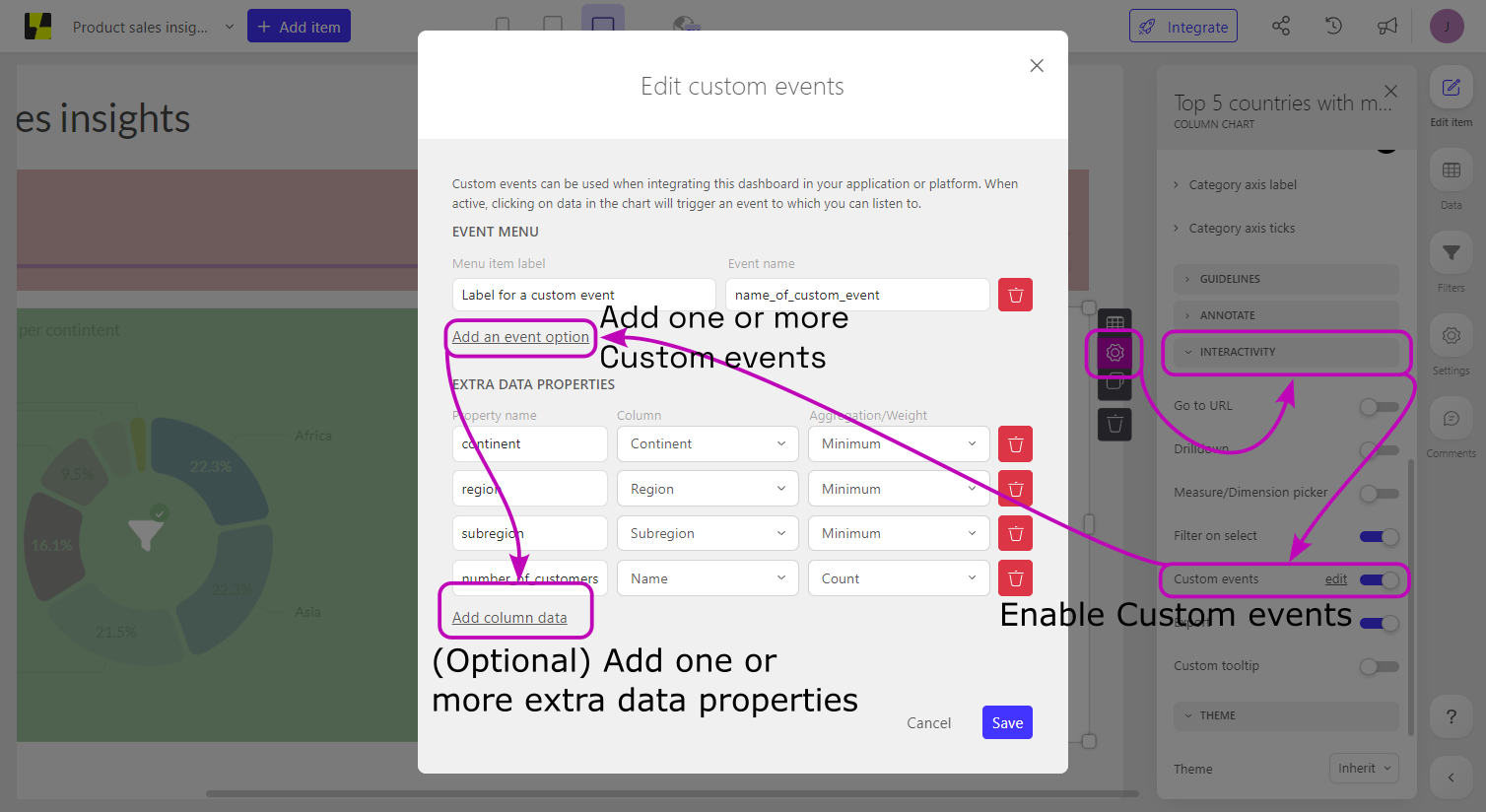
Below you can see the event that is emitted by the frontend component when the custom event set up on the column chart above is triggered.
Payload
{
  "data": {
    "name": "luzmo-dashboard-O1680172026057",
    "language": "en",
    "type": "customEvent",
    "data": {
      "event": "name_of_custom_event",
      "language": "en",
      "measure": {
        "value": 8305.960329,
        "formattedValue": "8.31k",
        "label": "Population density (per km²)"
      },
      "category": {
        "id": "Singapore",
        "value": "Singapore",
        "label": "Country"
      },
      "extraData": {
        "continent": {
          "value": {
            "id": "Asia"
          },
          "datasetId": "< dataset ID >",
          "columnId": "< continent column ID >",
          "aggregation": {
            "type": "min"
          }
        },
        "region": {
          "value": {
            "id": "East Asia & Pacific"
          },
          "datasetId": "< dataset ID>",
          "columnId": "< region column ID >",
          "aggregation": {
            "type": "min"
          }
        },
        "subregion": {
          "value": {
            "id": "South-Eastern Asia"
          },
          "datasetId": "< dataset ID>",
          "columnId": "< subregion column ID >",
          "aggregation": {
            "type": "min"
          }
        },
        "number_of_customers": {
          "value": 12054,
          "datasetId": "< dataset ID>",
          "columnId": "< name column ID >",
          "aggregation": {
            "type": "count"
          }
        }
      }
    },
    "dashboardId": "< dashboard ID >",
    "screenMode": "largeScreen",
    "itemId": "< dashboard item ID >"
  }
}{
"data": {
"name": "luzmo-dashboard-O1680172026057",
"language": "< dashboard language, e.g. 'en' >",
"type": "customEvent",
"data": {
"language": "< current dashboard language, e.g. 'en' >",
"<item-specific slot name>": {
"value": < numeric value >,
// The "formattedValue" for e.g. SI units would be "8.31k"
"formattedValue": "< formatted value >",
"label": "< slot column label >"
},
"<another item-specific slot name>": {
// The "id" would be identical to the data value in your data source
"id": "< data text value >",
// If the data value is adapted via our hierarchy editor,
// the adapted value would be exposed as "value".
"value": "< hierarchy data text value >",
"label": "< slot column label >"
},
// Other item-specific slots used in your dashboard item
// ...
// Extra data as added in the Custom events configuration modal of the widget
"extraData": {
"<extra data property name>": {
"value": {
// The "id" would be identical to the data value in your data source
"id": "< data text value >"
},
"datasetId": "< dataset ID >",
"columnId": "< hierarchy-column ID >",
"aggregation": {
"type": "< 'min' or 'max' >"
}
},
"<another extra data property name>": {
"value": <numeric value>,
"datasetId": "< dataset ID >",
"columnId": "< column ID >",
"aggregation": {
"type": "count"
}
},
"<another extra data property name>": {
"value": <numeric value>,
"datasetId": "< dataset ID >",
"columnId": "< numeric-column ID >",
"aggregation": {
"type": "< 'rate' / 'weightedaverage' >",
"columnId": "< denominator/weight column ID >",
"datasetId": "< denominator/weight dataset ID >"
}
},
// Any other extra data properties set up for this item's custom events.
// ...
},
// The "event" name is defined in the dashboard editor,
// and specific to dropdown element (i.e. custom event) the user clicked on.
"event": "< custom event name >"
},
"dashboardId": "< dashboard ID >",
"screenMode": "< screen mode, e.g. 'largeScreen' >",
"itemId": "< dashboard item ID >"
}
}The emitted event contains information about the dashboard item , the specific data point that was clicked on, as well as all extra data properties you set up in the custom events modal of that item.
The emitted customEvent event contains the following meaningful payload in the data property:
| Property | Description |
|---|---|
|
language string |
The language in which the dashboard has loaded. This Academy article goes into more detail about multi-lingual dashboards. |
|
type string |
The type of the event, in this case customEvent.
|
|
data object |
The actual data that is emitted from the dashboard item. The event name, as specified in the 'Custom events' modal, will be included in its name property.The properties inside this data object are highly dependent on the specific dashboard item type, item slot(s) usage, and item slot(s) configuration; typically, you could expect properties that are named similar as the dashboard item's slot names (e.g. 'measure', 'category', 'x-axis', etc.). Next to that, it will include an extraData property that will contain all the extra data properties that were set up in the "Custom events" modal (see this Academy article).It's recommended to test your specific setup with an event listener on the customEvent event, and investigate its specific payload when emitted!
|
|
dashboardId UUID |
The ID of the dashboard where this event has been triggered from. |
|
screenMode string |
The screen mode in which the dashboard is currently shown: either mobile, tablet, desktop, largeScreen, or fixed.
|
|
itemId uuid |
The ID of the dashboard item that caused this event to be emitted. |