Embed the dashboard editor
Empower your users to create and alter dashboards straight from within your application with our embedded dashboard editor. With the embedded dashboard editor, non-technical users can easily create their own insights based on the data they were given access to!
Before diving into the embedded dashboard editor guide, it might be useful to first understand how to generate Embed Authorization tokens and read through the Embedding dashboards guide to understand how to embed dashboards in view mode!
Once you've embedded dashboards in view mode with Embed authorization tokens, it's very easy to further extend this setup to also allow (certain) end-user designers to use the dashboard editor embedded into your application. There are a few topics that are important for the embedded dashboard editor:
In the Authorization request:
Define securable access rights - give at least
userights to your dashboards and datasets.Specify the user role - give a
designerorownerrole to your user in the authorization request in your backend.
In your frontend, you can set the
editModeproperty of the frontend component to show the dashboard in the desired edit mode.
Need a fully custom editor? If you want to build a deeply integrated, component-by-component editing experience tailored to your application's UI, check out the Building a dashboard editor with the Analytics Components Kit guide. The embedded dashboard editor described here is the fastest way to get a full-featured editor up and running out of the box.
Generate an Embed token with designer role and rights
In this step, your server-side code makes an API request to generate an Embed authorization token . In this API request, we can optionally specify the role that your user should have (defaults to "viewer" role), and the access your user should have to Luzmo dashboards & datasets; the flow chart below should help in making that decision for your specific use-case and user! The API response will contain an Embed key-token pair that can be used in the frontend component to securely embed a dashboard in your application/platform in view or edit mode.
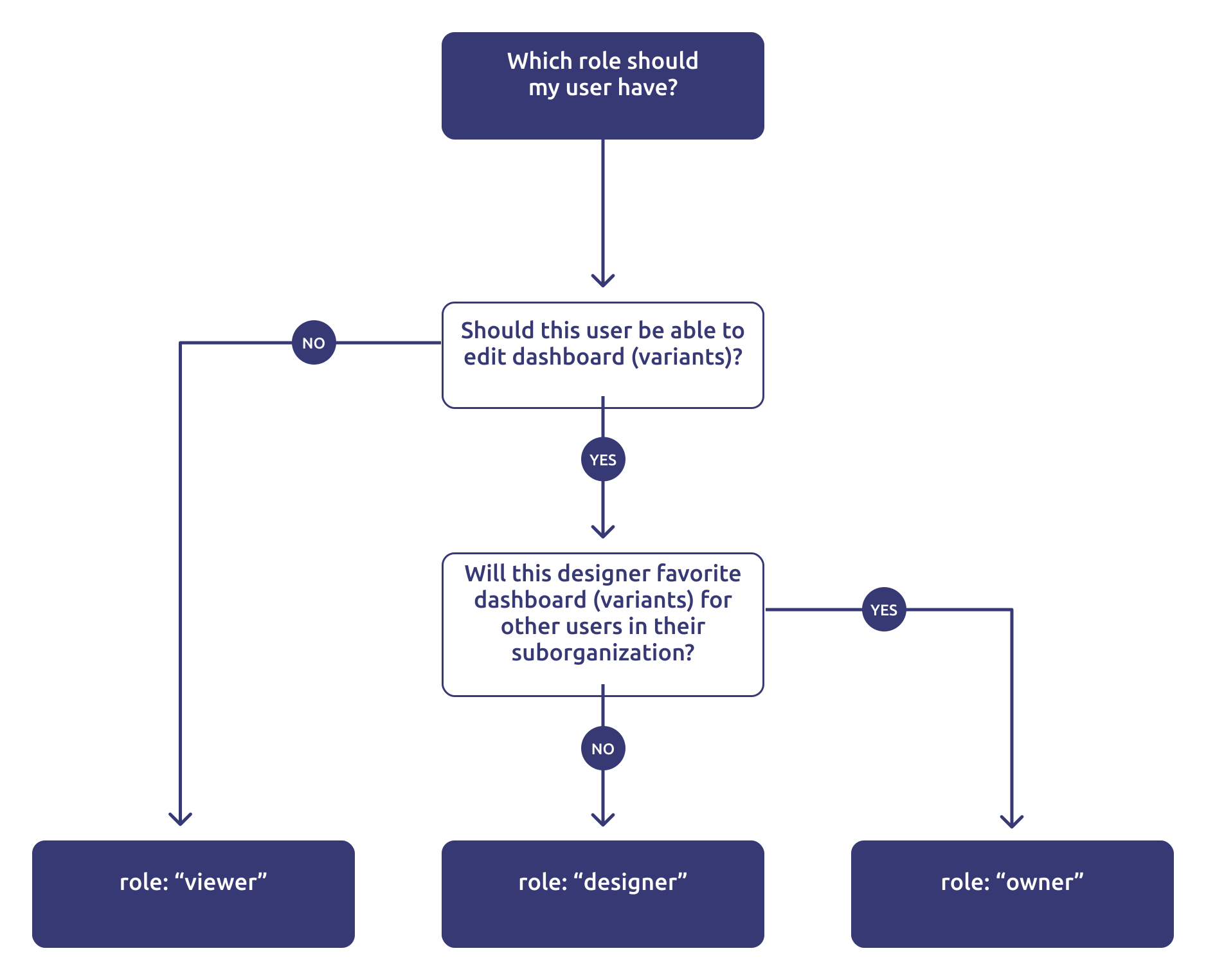
This first part needs to happen server-side . This is for security reasons: you do not want to expose your API key & token client-side, as that would mean that users would be able to change filters or grant access to your securables (dashboard and/or datasets) themselves.
Remember: never use your API key and token client-side !
const Luzmo = require('@luzmo/nodejs-sdk');
const client = new Luzmo({
    api_key: "< Your API key >",
    api_token: "< Your API token >",
    host: "< https://api.luzmo.com (default) or https://api.us.luzmo.com or your VPC-specific address >"
});

const promise = client.create("authorization", {
  type: "embed",
  expiry: "2024-02-13T10:38:08.493Z",
  inactivity_interval: 600,
  username: "< A unique and immutable identifier for your user >",
  name: "< user name >",
  email: "< user email >",
  suborganization: "< a suborganization name >",
  role: "< 'viewer' (default), 'designer', or 'owner' >",
  access: {
      dashboards:[
        {
          id: "<a dashboard id>",
          rights: "use"
        }
      ],
      datasets:[
        {
          id: "<a dataset id>",
          rights: "use"
        }
      ],
      collections: [
        {
          id: "<a collection id>",
          inheritRights: "use"
        }
      ]
    }
});

promise.then(function(result){
  // return the result to the client
})
This returns a JSON object with an id/token combination that we will use in step 2 to securely embed the dashboard in your application/platform:
{
  "type": "embed",
  "id": "< the embed authorization key >",
  "token": "< the embed authorization token >",
  "user_id": "< a uuid used on Luzmo's end to identify the embed user >"
  // ...
}
For a list of all properties, check Authorization in the Core API.
Embed the dashboard with an edit mode
To embed a dashboard in your webpage, we use the Luzmo Embed Libraries.
First, you should install and import the appropriate component in your frontend (see Embedding - Getting started ).
In this step we'll use the designer / owner Embed key and token, received from the authorization request in your backend, to securely embed a dashboard in your frontend. Next to that, we'll specify the initial edit mode in which the dashboard should be loaded!
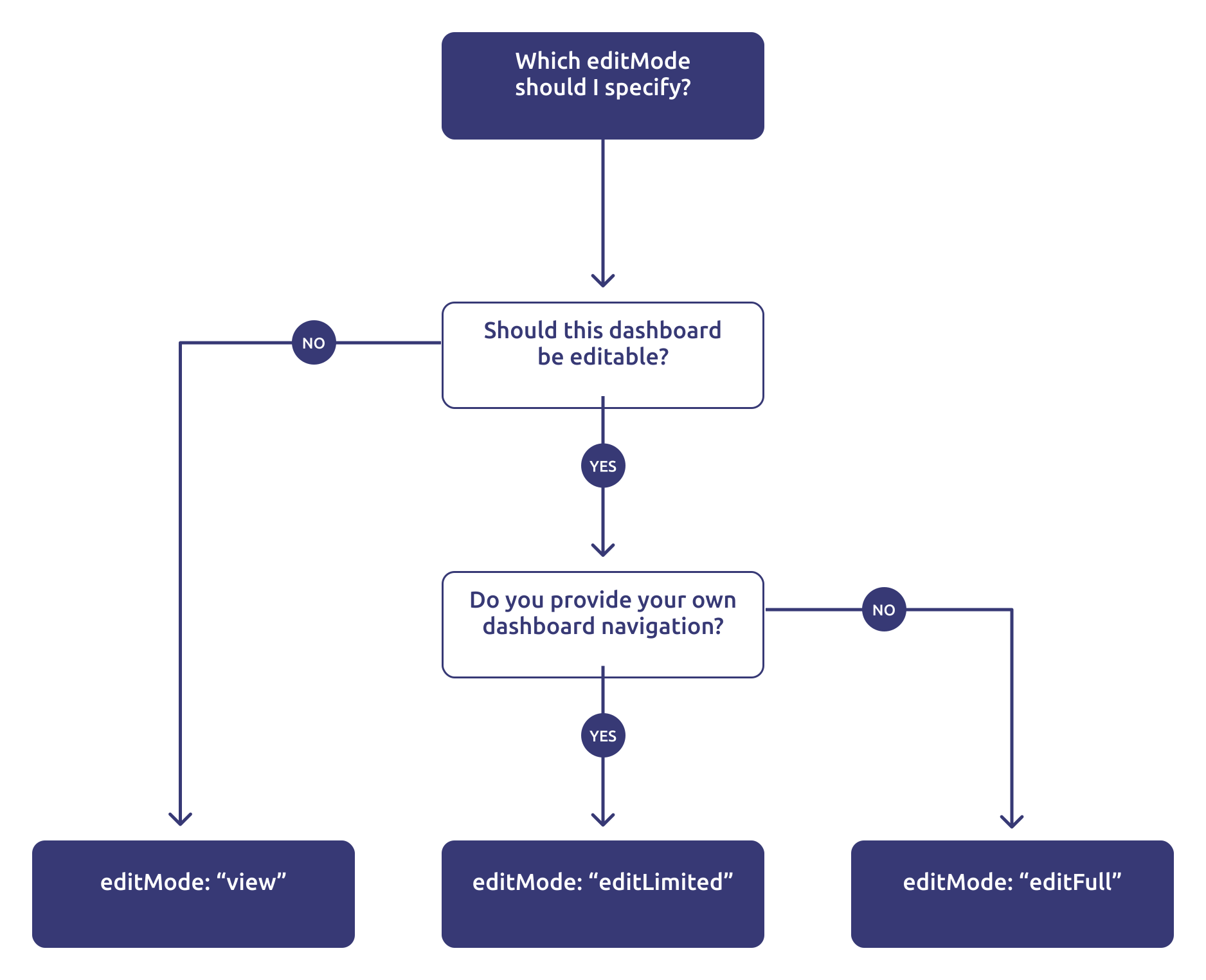
The flow chart below could help out in deciding which editMode fits your use-case and application.
<!--
Clients on our US multi-tenant application environment,
or a dedicated instance on a specific VPC, should specify:
- appServer="https://app.us.luzmo.com/" (or your VPC-specific address)
- apiHost="https://api.us.luzmo.com/" (or your VPC-specific address)
-->
<luzmo-embed-dashboard
  appServer="< Luzmo App server, defaults to https://app.luzmo.com >"
  apiHost="< Luzmo API server, defaults to https://api.luzmo.com >"
  authKey="< Embed authorization key >"
  authToken="< Embed authorization token >"
  editMode="< view, editLimited, or editFull >"
  dashboardId="< dashboard id you want to embed >"
  mainColor="<rgb() main color value, e.g. rgb(50,50,50)>"
></luzmo-embed-dashboard>| Property | Description |
|---|---|
|
appServer STRING |
Tenancy of Luzmo app to connect to. Defaults to 'https://app.luzmo.com/'.
For US multi-tenant application, set appServer to 'https://app.us.luzmo.com/'. For dedicated VPC environments, you should point towards your VPC-specific address. |
|
apiHost STRING |
Tenancy of Luzmo API to connect to. Defaults to 'https://app.luzmo.com/'.
For US multi-tenant application, set apiHost to 'https://app.us.luzmo.com/'. For dedicated VPC environments, you should point towards your VPC-specific address. |
|
authKey UUID |
The authorization key (i.e. "id") from the response of the authorization request in your backend. |
|
authToken STRING |
The authorization token from the response of the authorization request in your backend. |
|
dashboardId UUID |
This is the id of the dashboard that you want to embed. |
|
editorLanguage string |
The language of the embedded dashboard editor components. Valid values are en, es, fr, de and nl.
|
|
mainColor STRING |
(Optional) Override the main color used in the whitelabeling of the embedded dashboard editor. If not provided, the main color of the whitelabeling colors set on the organization will be used.
Should be specified as a string of rgb values, e.g. "rgb(50,50,50)".A gif showcasing the influence of specifying mainColor can be seen in this Academy article. |
|
editMode STRING |
The mode in which the dashboard should be loaded. Defaults to "view". "view" This mode enables your users to view and interact with an embedded dashboard, without having the option to change the dashboard itself. "editLimited" This mode is useful if you have your own dashboard navigation in your application (e.g. a sidebar containing dashboard tabs or a dropdown) and would like the user to edit (some of) the dashboards (e.g. by adding an “Edit” button that toggles the editMode between “view” and “editLimited” mode). Users will be able to create variants of the dashboard or edit the dashboard itself (depending on the access rights you defined for the dashboard) and share these dashboard (variants) with other users in their organization. "editFull" If you have a dedicated place in your application where users should be able to create & edit all their accessible dashboard(s) (e.g. in your navigation bar you have a “Dashboard editor” tab that should show the embedded dashboard editor). The user will be able to create edit, duplicate and create a variant of existing dashboards (depending on the access rights you defined for the dashboard) as well as create new dashboards and share these dashboard (variants) with other users in their organization. |
There are additional properties that can be specified to e.g. choose which language or timezone will be loaded and/or to style the dashboard loader . This to ensure a perfect fit with the style of your page. Check the Component reference for all documentation related to Luzmo's frontend components.
That's it, with these steps you securely embed a dashboard in your application/platform!
Capture events to enhance interactivity
The Luzmo embed libraries emit events when certain actions take place. You can set up an event listener in your application to capture these events and enhance the interactivity of your embedded dashboards. Some benefits include:
Real-time Updates : By listening to events, you can update other parts of your application in real-time based on user interactions with the dashboard.
Custom Actions : Trigger custom actions or workflows in your application when specific events occur, such as logging user activity or sending notifications.
Enhanced User Experience : Provide a more dynamic and responsive user experience by reacting to user actions immediately.
Data Synchronization : Keep your application data in sync with the dashboard data, ensuring consistency across your platform.
Analytics and Monitoring : Collect and analyze user interaction data to gain insights into how users are engaging with the dashboards.
More specifically, the dashboardAction event encompasses several actions which are exclusive to the Embedded Dashboard Editor. This event contains the following meaningful payload in the data property:
| Property | Description |
|---|---|
|
language string |
The language in which the dashboard has loaded. This Academy article goes into more detail about multi-lingual dashboards. |
|
action string |
The type of action that has occurred:
addColumnToSlot: a dataset column is added to a chart's slot
addFormulaToSlot: a formula is added to a chart's slot
addItem: an item (chart or filter) is added to the dashboard
cloneItem: an item is cloned
closePreview: the dashboard preview is closed
dashboardSaved: the dashboard is saved
measureDimensionPickerUpdate: the configuration of the M/D picker is modified
preview: the dashboard preview is opened
removeColumnFromSlot: a formula or column is removed from a chart's slot
removeItem: an item is removed from the dashboard
rightClickOnColumnListItemInDataMenu: right-click on a column with the data menu
rightClickOnDatasetListItemInDataMenu: right-click on a dataset with the data menu
rightClickOnFormulaListItemInDataMenu: right-click on a formula with the data menu
updateDashboardTitle: the dashboard's title is modified
authorizationExpired: the user's embed authorization has expired. Unlike the others, this event is not limited to the embedded dashboard editor. See here for more information on this event specifically.
|
|
type string |
The type of the event, in this case dashboardAction.
|
|
dashboardId string |
The ID of the dashboard in which the action is taken. |
|
screenMode string |
The active screenMode when the action is taken. |
|
item object |
Information on the item affected by the action. For example, the chart's ID.
This property is only present in the events for the addColumnToSlot, addFormulaToSlot, addItem, cloneItem, measureDimensionPickerUpdate, removeItem, removeColumnFromSlot actions.
|
|
dropType string |
Type of action taken on slot: add or replace.
This property is only present in the events for the addColumnToSlot and addFormulaToSlot actions.
|
|
column object |
Information on column used in action
This property is only present in the events for the addColumnToSlot, removeColumnFromSlot, rightClickOnColumnListItemInDataMenu actions.
|
|
formula object |
Information on formula used in action
This property is only present in the events for the addFormulaToSlot, rightClickOnFormulaListItemInDataMenu actions.
|
|
measureDimensionPickerState list |
Information on new configuration for Measure/Dimension picker
This property is only present in the events for the measureDimensionPickerUpdate action.
|
|
originalEvent object |
Information on right-click
This property is only present in the events for the rightClickOnColumnListItemInDataMenu, rightClickOnDatasetListItemInDataMenu, rightClickOnFormulaListItemInDataMenu actions.
|
|
dataset object |
Information on dataset
This property is only present in the events for the rightClickOnDatasetListItemInDataMenu action.
|
|
updatedTitle object |
Title object including all languages configured
This property is only present in the events for the updateDashboardTitle action.
|